QSOMate Settings
To configure QSOMate, press the options button  at the top right of the screen, then select Settings. Enter the new values and tap Done.
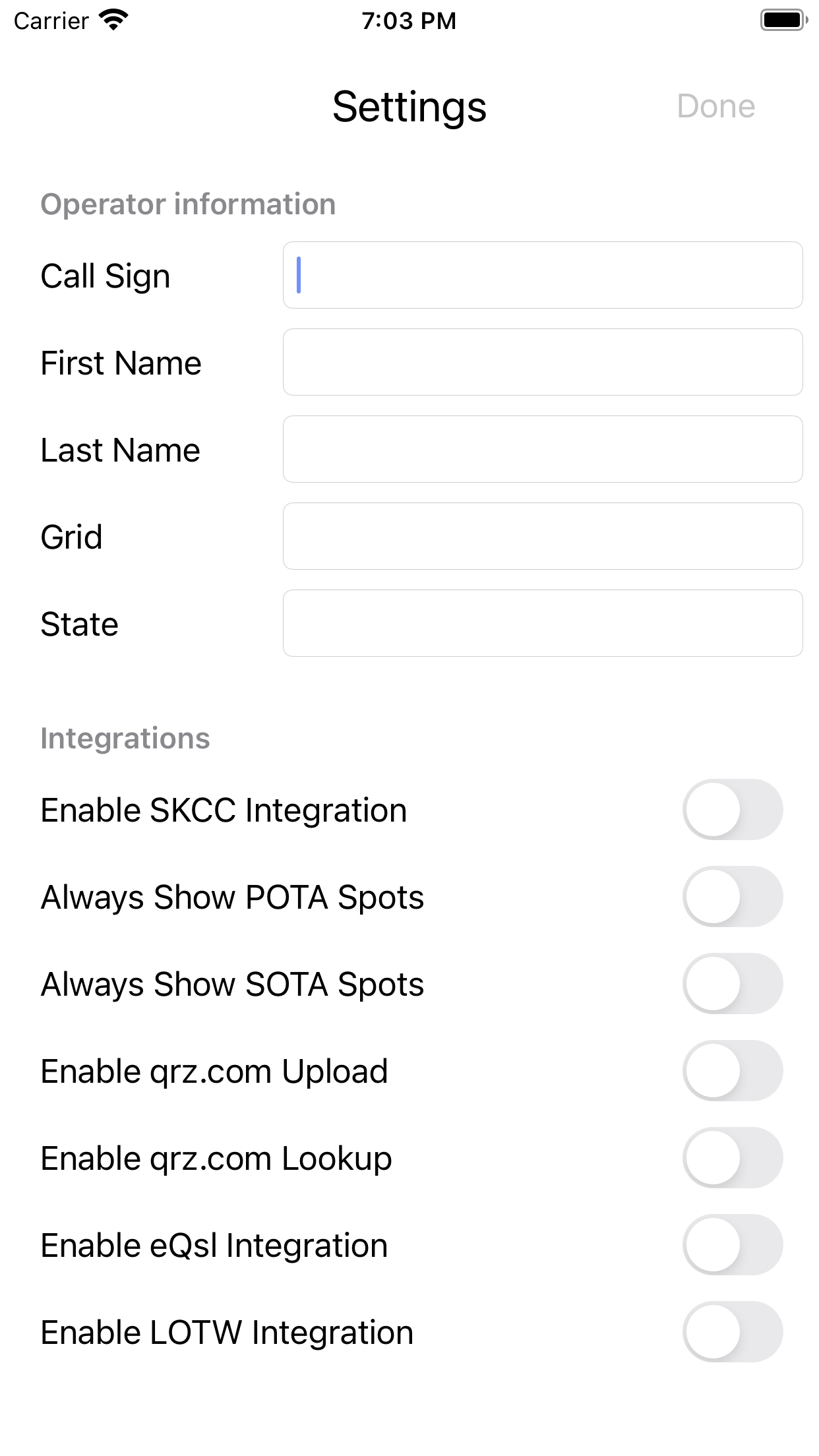
Call Sign
The operator’s call sign, typically the person using QSOMate. This is required, as it is recorded in every QSO.
First Name
The operator’s first name. It can be left blank if you do not wish to log it.
Last Name
The operator’s last name. It can be left blank if you do not wish to log it.
Grid
The operator’s home Maidenhead grid square, in either four- or six-character form. It is the default recorded when a QSO has no overriding location, such as during a POTA activation.
State
The operator’s home state. It can be left blank if you do not wish to log it.
Enable SKCC Integration
When enabled, QSOMate periodically downloads the SKCC member list and checks logged contacts for SKCC members. You can copy available exchange information (name, SKCC number, and optional key type) into a QSO. The SKCC activity is also enabled. See Getting started for SKCC.
Only add the number when you have exchanged the required information.
Always Show POTA Spots
When enabled, current POTA spots are accessible from any screen. Network access is required to update the spots list.
Always Show SOTA Spots
When enabled, current SOTA spots are accessible from any screen. Network access is required to update the spots list.
Enable QRZ.com upload
When enabled, new contacts are uploaded to QRZ.com as they are saved if network access is available. Otherwise, they are uploaded later when a connection is available.
QRZ.com API key
When QRZ.com upload is enabled, enter your QRZ.com API key. A QRZ.com subscription is required for uploading contacts.
Enable QRZ.com lookups
When enabled, QSOMate tries to look up contacts using QRZ.com. QRZ.com may limit monthly lookups without a subscription. When disabled, QSOMate uses the free HamDB service.
QRZ.com User Name
When QRZ.com lookups are enabled, enter your QRZ.com user name, likely your call sign. A user name and password are required.
QRZ.com Password
When QRZ.com lookups are enabled, enter your QRZ.com password.
Enable eQSL Integration
When enabled, new contacts are uploaded to eQSL as they are saved if network access is available. Otherwise, they are uploaded later when a connection is available.
eQSL User Name
When eQSL integration is enabled, enter your eQSL user name.
eQSL Password
When eQSL integration is enabled, enter your eQSL password.
Enable LoTW Integration
When enabled, new contacts are uploaded to Logbook of The World as they are saved if network access is available. Otherwise, they are uploaded later when a connection is available.